Administration settings overview
Goal
Understand how supplier administrators can configure organisation-level settings such as roles, users, platform fee statements, SAVi statements, and email notifications from the ViSN portal.
Who should use this page
- Supplier Head Office or Admin role holders
- Branch managers with elevated access to configuration modules
Accessing Administration
- Sign in to the supplier portal with an account that has administration permissions.
- Use the top-right organisation selector if managing multiple units, then choose the relevant account.
- Click the
Administrationlink underSettingslink in the left navigation to open the Administration landing page.
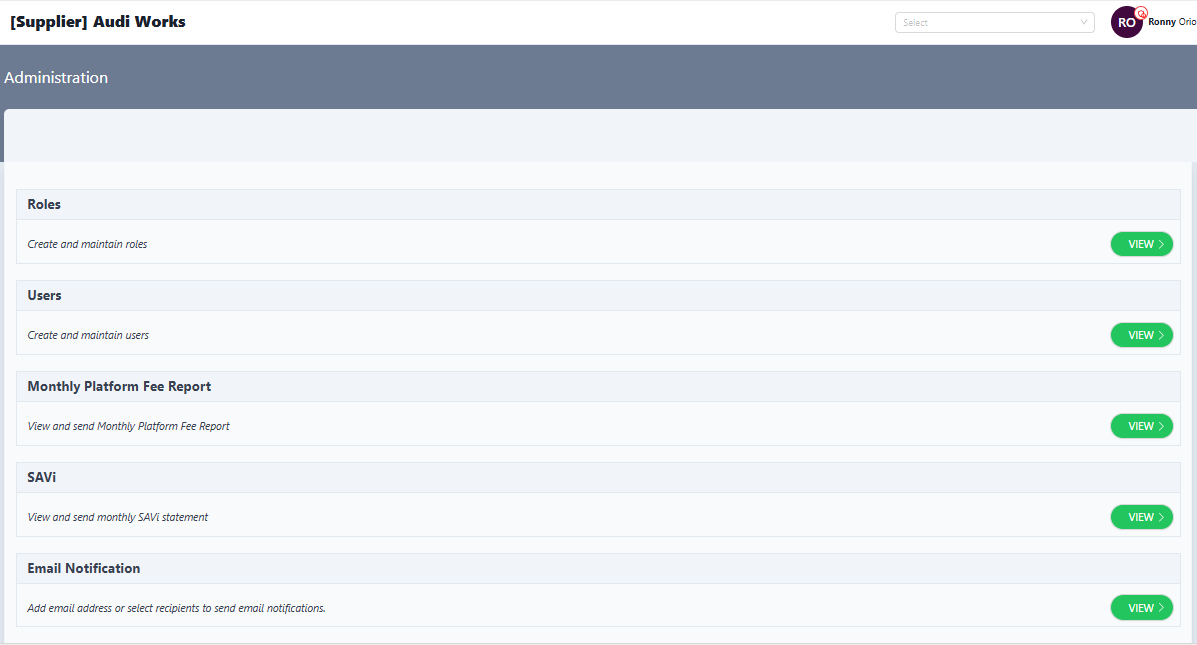
The landing page displays cards for each module. Click View on a card to open its settings.
Modules available
Roles
- Create, edit, or deactivate role templates that define feature access for supplier users.
- Typical fields include Role Name, Description, and permissions checkboxes (e.g., Enquiry Management, Dashboard, Settings).
- After updating roles, changes will appear for all users.
Users
- Add new users, assign roles, and control branch access.
- Key actions:
Create User: enter name, email, phone, and select the appropriate role.Reset Password: sends a reset link to the user’s email address.Deactivate: removes access without deleting historical data.
- The search bar can be used to filter by name or email when managing large user lists.
Monthly Platform Fee Report
- View and send the supplier's Monthly Platform Fee report.
- Select the month, preview the statement, and click
Email Meto send the email to registered email address(user email id)
SAVi
- Access the monthly SAVi statement.
- Choose a month to load its summary, including transaction counts, rates applied, and total charges.
- Use the
Sendoption to email the report to finance or export it for internal reconciliation.
Email Notification
- Maintain the recipient list for automated communications (e.g., booking updates, enquiry updates, daily report).
- Add a new email address, select the notification categories it should receive, and save.
- Remove outdated contacts or disable individual categories for the notification.
Best practices
- Review roles quarterly to ensure least-privilege access, especially after organisational changes.
- Audit the email notification list whenever a key contact leaves the business to prevent delivery failures.
Troubleshooting
| Issue | Resolution |
|---|---|
| Cannot see Administration tab | Confirm the user role includes admin privileges or contact head office to elevate access. |
| Emails from reports are not received | Verify the email address in the Email Notification module and check spam filters. |
| Role permissions not applying | Have the user log out and back in; if persistent, re-save the role and contact support with the role name. |
Status: Draft
Category: Protected
Authored By: Arun Kumar on November 17, 2025
Revisions